By the end of this post, you’ll have a system for tracking prompt changes that takes less than five minutes to set up and saves you from the specific pain of staring at a great AI output and having no idea which version of your prompt produced it. You’ll also know which parts of “proper” version control actually matter for prompts and which parts are overkill for a team that isn’t shipping software.
I manage content operations for a small team, and prompts are now part of our daily toolkit the same way templates and style guides used to be. Somewhere around the third time I rewrote a prompt from memory because the “good version” had been overwritten and lost, I realized treating prompts as disposable text was costing us real hours. What follows is the system that replaced that chaos, organized around the misconceptions that kept me from building it sooner.
Myth: Prompt versioning requires the same tooling as code versioning
Reality: it doesn’t, and trying to force it usually backfires.
Spending a weekend trying to get a team to adopt a full Git workflow for prompts — branches, commit messages, the works — is a common experience. Nobody used it. Not because the team is allergic to tools, but because a prompt isn’t a codebase. It’s a short piece of text you tweak five or six times in an afternoon while testing tone. Forcing that into a pull-request workflow adds friction without adding value.
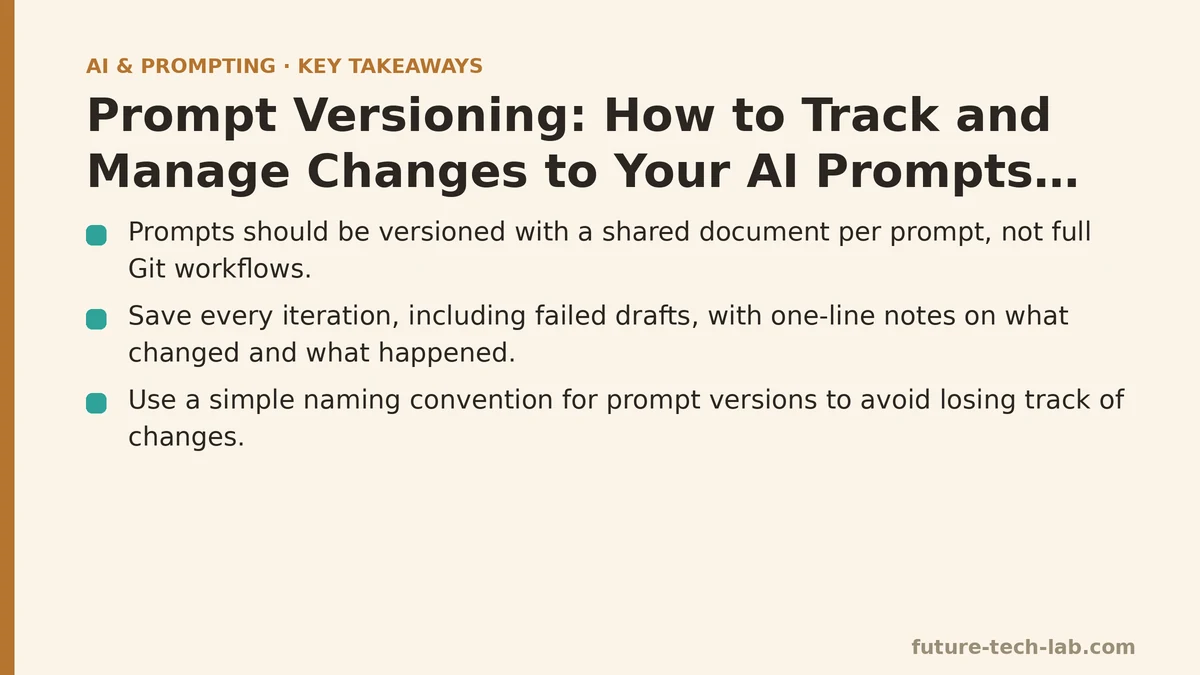
What stuck was much simpler: a shared document per prompt, with each version stacked chronologically, dated, and labeled with a one-line note on what changed and why. No merge conflicts to resolve, no branching strategy to explain to a new hire. Just a running log anyone on the team can scroll through in ten seconds.
The lesson here isn’t “don’t version your prompts.” It’s that the format of versioning should match the size of the thing being versioned. A four-sentence prompt doesn’t need the machinery built for a ten-thousand-line application.
Myth: You only need to save the prompt that “worked”
Reality: the failed versions are often more useful than the winning one.
Early on, our habit was to keep only the final, successful prompt and delete everything leading up to it. That felt efficient at the time. It wasn’t. Six weeks later, when a new team member asked why we phrased something a particular way, none of us could explain it — the reasoning had lived in the discarded drafts, not the final text.
Now every iteration gets saved, including the ones that produced mediocre or outright bad output. Each entry gets a short note: what changed, and what happened as a result. “Added target word count — output got noticeably tighter” or “Removed the tone instruction — output drifted back to generic corporate voice.” Those notes turn a pile of old drafts into a small, searchable history of cause and effect.
This matters more than it sounds like it should. When a prompt that used to work well suddenly produces worse output — which happens after model updates more often than people expect — having the failed attempts on record lets you retrace the reasoning instead of starting the diagnostic process from zero.
Myth: Version numbers are just for developers
Reality: a simple naming convention saves more time than any tool you could buy.
For months, our prompt documents were named things like “final,” “final_v2,” and, embarrassingly, “final_v2_ACTUAL.” Anyone who’s shared a folder with a team will recognize that pattern immediately, and it’s as useless for prompts as it is for anything else.
Switching to a plain convention fixed it: prompt-name_v[number]_[date]. So onboarding-email_v4_0612 tells you exactly which prompt this is, how many iterations it’s been through, and when it was last touched. No clicking into the document just to figure out if it’s current.
Pair that with a one-line changelog at the top of each document — “v4: added constraint against exclamation points” — and you get most of the benefit of a changelog file without needing anyone to learn changelog conventions. The goal isn’t rigor for its own sake. It’s being able to answer “which version are we using right now” without a meeting.
Myth: Prompt versioning is only useful for solo work
Reality: it matters more once more than one person is touching the same prompt.
When it was just me writing prompts, I could hold the history in my head well enough. That stopped working the moment a second person started adjusting the same prompts for client work. Without a shared version log, two people would independently “fix” the same prompt in conflicting directions, and neither would know the other had touched it.
The fix wasn’t complicated: one shared location per prompt, one person responsible for merging changes when two edits overlap, and a rule that nobody edits the “current” version in place — they duplicate it, edit the copy, and note what changed. That last rule alone eliminated almost all of our confusion about which version was live.
If your team is still small, this might feel like unnecessary structure. It isn’t. It’s much easier to build the habit with two people than to retrofit it once five people have been quietly maintaining their own private prompt libraries for a year.
Myth: You need to version every prompt equally
Reality: prioritize the prompts that are reused often or that touch anything client-facing.
Not every prompt deserves the same level of ceremony. A one-off prompt used to reformat a single spreadsheet doesn’t need a changelog. But the prompt that generates our weekly client update, or the one that drafts first-pass social copy, gets touched by multiple people and reused dozens of times a month — that’s where a missing version history turns into a real cost.
You can sort your prompts into two rough tiers. High-reuse prompts get the full treatment: dated versions, changelog notes, a designated owner. Everything else lives in a loose scratch folder with no formal tracking at all. This keeps the system lightweight enough that people maintain it, instead of abandoning the whole practice because it felt heavier than the payoff justified.
A Quick Comparison: What Changes Once You Version Prompts
| Without Versioning | With Versioning |
|---|---|
| “Which version made that great output?” gets answered with a guess | The changelog tells you exactly which change produced it |
| Team members quietly overwrite each other’s edits | Edits are additive, tracked, and attributed |
| A prompt that stops working feels mysterious | You can compare it against the last version that worked |
| Institutional knowledge lives in one person’s memory | It lives in a document anyone can read |
What This Buys You
None of this requires software built for prompt management, though plenty exists now if your team scales past what a shared document can handle. What it requires is a habit: save every version, note what changed, and name things so a stranger could figure out the current state in under a minute.
The payoff isn’t abstract. It’s the difference between recreating a prompt from a hazy memory of “something about tone and word count” and pulling up v6, reading the note, and being back to working output in thirty seconds. For a team producing content daily, that difference adds up to hours every month — hours that used to disappear into rewriting things we’d already figured out once.
If you’re trying to decide where to start, don’t start with tooling. Start by picking your three most-used prompts, creating a single document for each, and writing down, in plain language, what the current version does differently from the one before it. Everything else in this post builds outward from that one habit.
Related guides: Meta-Prompting: Using AI to Write and Optimize Your Own Prompts, The Iterative Prompting Framework: How to Test and Refine Your Prompts, and AI Prompt Templates for Common Everyday Tasks.
🔗 Recommended Reading
- How to Build a Semantic Search Engine with Embeddings: A Beginner's Step-by-Step Tutorial
- Building Your First RAG Chatbot: A Step-by-Step Tutorial for Beginners
- Function Calling for Beginners: A Step-by-Step Tutorial to Connecting LLMs to External APIs
- Vector Databases Explained: A Beginner's Guide to Storing and Querying Embeddings
- How to Evaluate LLM Outputs: A Beginner's Step-by-Step Tutorial to Testing and Scoring AI Responses