📖 5 min read
In today's fast-paced business environment, effective project management is no longer a luxury—it's a necessity. Successfully navigating complex projects requires meticulous planning, vigilant tracking, and transparent reporting. Many organizations, particularly startups and small to medium-sized enterprises (SMEs), find themselves grappling with the high costs and steep learning curves associated with sophisticated project management software. This is where a Project Management Excel Template Pack becomes an invaluable asset, offering a cost-effective, user-friendly solution to streamline workflows and boost overall productivity. With the right Excel templates, even the most intricate projects can be managed with clarity and precision, leading to improved outcomes and enhanced team collaboration. Let's delve into how a well-designed Excel template pack can revolutionize your project management approach.
1. The Power of Centralized Project Tracking
A core component of any effective project management strategy is the ability to track progress in real-time. The Project Management Excel Template Pack provides a centralized platform for monitoring tasks, deadlines, and resource allocation. This eliminates the need for scattered spreadsheets and email chains, ensuring that all stakeholders have access to the most up-to-date information. By consolidating project data into a single, easily accessible location, teams can proactively identify potential roadblocks and make informed decisions to keep projects on schedule.
Consider, for example, a marketing campaign launch. Using a Gantt chart template from the pack, the marketing team can map out each phase of the campaign, from initial planning and creative development to execution and post-launch analysis. Each task can be assigned a specific start and end date, along with resource allocation, allowing the project manager to monitor progress and identify any delays. Furthermore, the template can be customized to include key performance indicators (KPIs), such as website traffic, lead generation, and conversion rates, providing a comprehensive view of the campaign's performance.
The benefits of centralized project tracking extend beyond improved visibility. By having a clear understanding of project status, teams can optimize resource allocation, prioritize tasks, and mitigate risks more effectively. This leads to increased efficiency, reduced costs, and improved project outcomes. Moreover, the transparency afforded by a centralized tracking system fosters a culture of accountability, where each team member is responsible for contributing to the overall success of the project.
2. Key Templates in a Comprehensive Pack
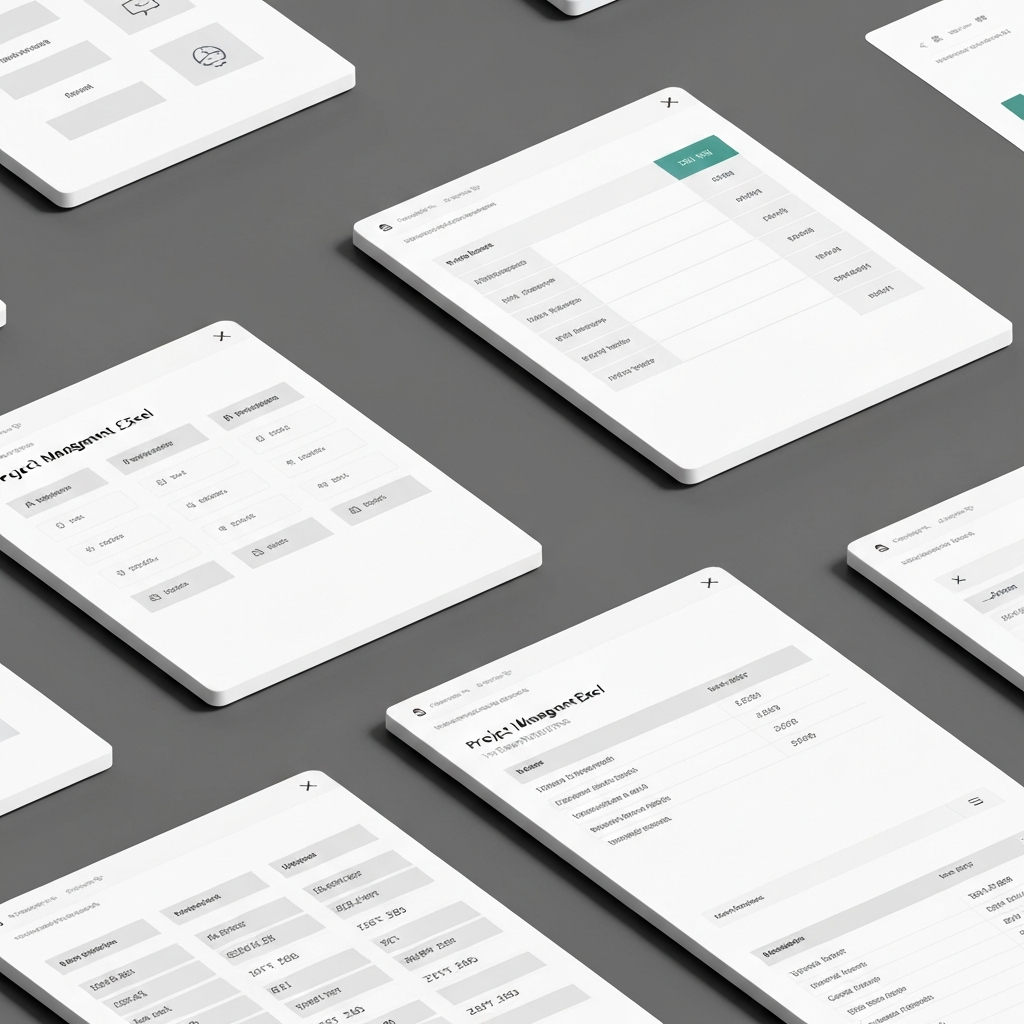
A well-rounded Project Management Excel Template Pack includes a variety of templates designed to address different aspects of project management. These templates can be used independently or in conjunction with each other to create a holistic project management system. Let's explore some of the essential templates you should expect to find in a comprehensive pack:
- Gantt Chart Template: Provides a visual representation of the project timeline, allowing you to track task dependencies, critical paths, and milestones. A Gantt chart helps in visualizing the project's schedule and identifying potential bottlenecks.
- Project Budget Template: Enables you to create and manage your project budget, tracking expenses, and monitoring variances. It assists in keeping the project within the approved financial parameters by tracking planned versus actual costs.
- Risk Management Template: Helps you identify, assess, and mitigate potential risks that could impact your project. By proactively addressing risks, you can minimize disruptions and ensure project success. It typically includes risk assessment matrices, mitigation strategies, and contingency plans.
- Task Management Template: Facilitates the assignment and tracking of individual tasks, ensuring that each team member knows their responsibilities and deadlines. It streamlines communication and promotes accountability within the team. Features include task descriptions, assignee, due dates, status updates, and priority levels.
- Project Status Report Template: Allows you to generate regular reports on project progress, highlighting key achievements, challenges, and next steps. Keeps stakeholders informed and maintains transparency. These reports can include summaries of completed tasks, upcoming milestones, budget status, and any critical issues requiring attention.
3. Automating Workflows for Maximum Efficiency
Pro Tip: Leverage Excel's built-in features like conditional formatting and data validation to automate repetitive tasks and minimize errors. This can significantly reduce the time spent on manual data entry and analysis, freeing up your team to focus on more strategic activities.
One of the most significant advantages of using a Project Management Excel Template Pack is the ability to automate various aspects of your workflow. By leveraging Excel's built-in formulas, macros, and conditional formatting features, you can streamline repetitive tasks, reduce the risk of errors, and improve overall efficiency. For example, you can create automated reports that generate summaries of project progress, budget status, and risk assessments with just a few clicks.
To implement workflow automation, start by identifying the tasks that are most time-consuming and prone to errors. These may include data entry, report generation, or task assignment. Next, explore Excel's features to determine how you can automate these tasks. For instance, you can use data validation to ensure that data is entered correctly, conditional formatting to highlight critical issues or milestones, and macros to automate repetitive tasks. Additionally, consider using Excel's Power Query feature to connect to external data sources and automatically update your templates with the latest information.
By automating workflows, you can significantly reduce the amount of time spent on manual tasks, allowing your team to focus on more strategic activities, such as problem-solving, innovation, and stakeholder engagement. This not only improves efficiency but also boosts morale and job satisfaction. Moreover, automation reduces the risk of errors, leading to more accurate data and better-informed decision-making. A Project Management Excel Template Pack, when properly utilized, can transform your project management processes from reactive to proactive, ultimately driving better project outcomes.
Conclusion
In conclusion, a Project Management Excel Template Pack offers a powerful and cost-effective solution for streamlining workflows and boosting productivity. By providing a centralized platform for project tracking, risk management, and resource allocation, these templates empower teams to manage projects with clarity and precision. The ability to automate repetitive tasks further enhances efficiency, allowing project managers to focus on strategic decision-making and problem-solving.
Looking ahead, the integration of artificial intelligence (AI) and machine learning (ML) into Excel-based project management tools will likely bring about even greater automation and predictive capabilities. We can anticipate smarter templates that can automatically identify potential risks, optimize resource allocation, and provide real-time insights into project performance, pushing the boundaries of what's achievable with Excel-based project management.
❓ Frequently Asked Questions (FAQ)
What is included in a typical Project Management Excel Template Pack?
A Project Management Excel Template Pack usually includes several pre-designed templates tailored for different project management activities. These templates commonly cover areas such as Gantt charts for project scheduling, budget trackers for cost management, risk assessment matrices for identifying and mitigating potential risks, task management sheets for assigning and monitoring tasks, and project status reports for communicating progress to stakeholders. Each template is designed to be user-friendly and customizable, allowing you to adapt it to your specific project requirements and organizational needs. The pack provides a holistic suite of tools for effective project oversight.
How can I customize the Excel templates to fit my specific project requirements?
Customizing Excel templates is straightforward and allows you to tailor them to your project's unique needs. Begin by identifying the fields or sections that need modification, such as adding specific task categories, adjusting budget line items, or incorporating custom risk factors. You can then modify the template by inserting new columns or rows, renaming existing fields, and adjusting formulas to calculate values based on your project's parameters. Utilize Excel's features like conditional formatting to highlight critical data points and data validation to ensure accurate input. Remember to save a backup of the original template before making changes to avoid losing the initial structure.
What are the advantages of using Excel templates compared to dedicated project management software?
Using Excel templates for project management offers several advantages, particularly for smaller teams or projects with limited budgets. Excel is generally more cost-effective as most businesses already own a Microsoft Office license, eliminating the need for additional software investments. The familiarity of Excel's interface reduces the learning curve and allows team members to quickly adapt and use the templates effectively. Excel templates also offer greater flexibility and customization options compared to some dedicated software, enabling you to tailor them precisely to your project's unique requirements. However, for larger, more complex projects, dedicated software may offer enhanced features such as advanced collaboration tools and real-time reporting that Excel may not provide.
Tags: #ProjectManagement #ExcelTemplates #WorkflowAutomation #Productivity #BusinessTools #ProjectPlanning #Efficiency