📖 5 min read
Effective project management is the cornerstone of successful business operations, regardless of industry or company size. While sophisticated project management software abounds, many teams find themselves overwhelmed by complexity and steep learning curves. That's where the humble yet powerful Microsoft Excel steps in, offering a user-friendly platform for creating robust project management templates. Using Excel for project management can be a surprisingly efficient way to organize tasks, track deadlines, allocate resources, and monitor progress, especially for smaller projects or teams already comfortable with the software. This comprehensive guide delves into the creation and utilization of an Excel project management template, empowering you to optimize your workflow and achieve your project goals with clarity and precision. Let's explore how this familiar tool can transform your project management approach.
1. The Power of Excel for Project Management
Excel's strength lies in its flexibility and accessibility. Most business professionals are already familiar with its interface and basic functions, minimizing the learning curve often associated with new software. This familiarity translates to faster template creation, easier data input, and quicker adoption by team members. Furthermore, Excel allows for customization, enabling you to tailor the template to the specific needs of your project, incorporating unique task categories, dependencies, and reporting requirements.
Consider a marketing team launching a new product. They could use an Excel template to list all tasks involved – from market research and content creation to social media promotion and press releases. Each task can be assigned a start date, due date, responsible party, and status (e.g., “Not Started,” “In Progress,” “Completed,” “Blocked”). They can also create a Gantt chart within Excel to visualize the project timeline and identify potential bottlenecks. This visual representation aids in proactive problem-solving and efficient resource allocation.
The practical implications of using an Excel project management template are numerous. It provides a centralized location for all project-related information, enhancing transparency and accountability. It facilitates better communication among team members by ensuring everyone is on the same page regarding deadlines, responsibilities, and progress. Most importantly, it empowers project managers to track progress against planned timelines and budgets, enabling them to make data-driven decisions and keep the project on track. By leveraging Excel's capabilities, teams can significantly improve their project management efficiency and achieve better outcomes.
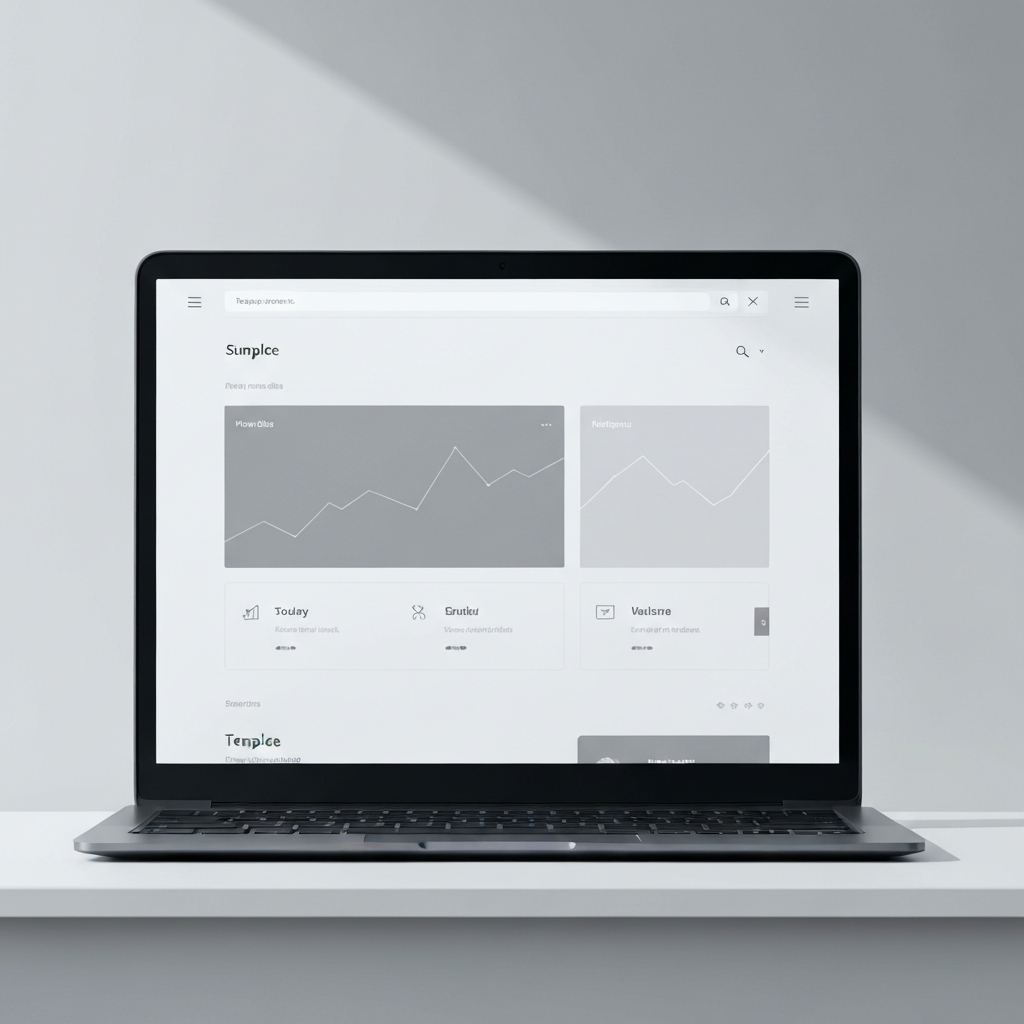
2. Essential Elements of an Excel Project Management Template
A well-designed Excel project management template should incorporate several key elements to ensure its effectiveness and usability. These elements provide a structured framework for organizing project information and tracking progress.
- Task List: This is the foundation of your template. It should include a comprehensive list of all tasks required to complete the project, broken down into manageable steps. Each task should have a unique identifier, a clear description, and a defined scope. For example, in a software development project, tasks might include “Requirement Gathering,” “Database Design,” “Front-End Development,” and “Testing.”
- Timeline: A realistic timeline is crucial for project success. For each task, specify a start date, due date, and estimated duration. Use Excel's date formatting and calculation capabilities to automatically calculate deadlines based on dependencies and task durations. Conditional formatting can be used to highlight tasks that are overdue or approaching their deadlines, providing a visual alert to potential delays. Properly managing the timeline is critical for on-time project completion and avoids unnecessary stress.
- Resource Allocation: Assigning responsibilities is essential for accountability. Designate a responsible party for each task and track their workload. This helps prevent tasks from falling through the cracks and ensures that team members are not overburdened. You can also track the resources required for each task, such as budget, equipment, or software licenses, enabling you to monitor resource utilization and prevent overspending. Using a separate sheet, you can maintain an up-to-date resource pool for assignment to different tasks.
3. Advanced Excel Features for Project Management
Pro Tip: Use Excel's built-in data validation feature to create dropdown lists for task status, priority, and responsible parties. This ensures data consistency and reduces the risk of errors.
While a basic Excel template can be highly effective, leveraging advanced features can significantly enhance its functionality and provide deeper insights into project performance. Data validation is one such feature, allowing you to restrict the type of data entered into specific cells. This ensures data consistency and reduces the risk of errors, making it easier to analyze and report on project progress.
Another powerful feature is conditional formatting, which allows you to automatically format cells based on their values. For example, you can highlight overdue tasks in red, completed tasks in green, and tasks approaching their deadlines in yellow. This provides a visual overview of project status and helps you quickly identify potential issues. Furthermore, Excel's charting capabilities can be used to create Gantt charts, burn-down charts, and other visual representations of project progress, making it easier to communicate updates to stakeholders.
By mastering these advanced Excel features, you can transform your project management template into a dynamic and insightful tool. It allows you to track progress in real-time, identify potential risks, and make data-driven decisions to keep your project on track. This ultimately leads to improved project outcomes and increased efficiency for your team. The visualization capabilities are particularly valuable in showcasing project progress to stakeholders who may not be familiar with the details of the project.
🔗 Recommended Reading
Conclusion
In conclusion, an Excel project management template offers a versatile and accessible solution for organizing, tracking, and managing projects of varying scales. Its familiarity and customizability make it an excellent alternative to more complex software, especially for teams already comfortable with Excel. By incorporating essential elements like task lists, timelines, and resource allocation, you can create a robust template that empowers your team to stay on track, meet deadlines, and achieve project goals effectively. The key is to start simple and iteratively enhance the template as your project needs evolve.
Looking ahead, the future of Excel project management templates may involve integration with cloud-based services for real-time collaboration and data synchronization. As Excel continues to evolve, we can expect to see even more advanced features that further enhance its project management capabilities. Embracing these advancements will undoubtedly lead to even greater efficiency and success in project execution. So, take advantage of the power of Excel and elevate your project management capabilities today!
❓ Frequently Asked Questions (FAQ)
Can I use Excel project management templates for large, complex projects?
While Excel can be adapted for managing relatively large projects, it may become less efficient compared to dedicated project management software as the project's complexity increases. Excel is best suited for projects with a manageable number of tasks and dependencies. For large, highly complex projects, consider dedicated software to handle intricate task relationships, resource allocation, and real-time collaboration more effectively. The increased automation and centralized data management within dedicated project management software will often save significant time and reduce the risk of errors in such cases.
How do I create a Gantt chart in Excel for my project management template?
Creating a Gantt chart in Excel involves using conditional formatting and stacked bar charts. First, create a table with task names, start dates, durations, and end dates. Then, create a stacked bar chart based on the start dates and durations. Next, use conditional formatting to hide the “start date” series, making only the “duration” series visible as bars representing task timelines. Customize the chart's appearance to improve readability, and add labels to represent milestones and task dependencies. Ensure proper scaling of the time axis for accurate visualization of the project timeline, and update data validation ranges when tasks are added.
What are some best practices for collaborating on an Excel project management template with a team?
For effective collaboration on an Excel project management template, utilize cloud storage services like OneDrive or Google Drive to enable real-time co-editing and version control. Establish clear guidelines for data entry and template usage to ensure consistency and prevent errors. Use data validation and comments to provide context and instructions for team members. Regularly review and update the template to reflect changes in the project plan. Most importantly, communicate openly and frequently with team members to address any questions or concerns regarding the template and its usage, as the most robust template will only be effective with universal adoption.
Tags: #Excel #ProjectManagement #Template #WorkflowAutomation #Productivity #BusinessTools #StartupStrategies