📖 5 min read
In today's digital landscape, the importance of data security cannot be overstated. External hard drives are incredibly convenient for storing and transporting large files, backups, and sensitive information. However, their portability also makes them vulnerable to loss, theft, or unauthorized access. Encrypting your external hard drive is a crucial step in safeguarding your data and protecting your privacy. This guide will walk you through the process of encrypting your external hard drive, ensuring that your information remains confidential even if the drive falls into the wrong hands.
1. Understanding the Importance of Encryption
Encryption is the process of converting readable data into an unreadable format, known as ciphertext. This ciphertext can only be decrypted and converted back to its original form using a specific key or password. When you encrypt an external hard drive, you are essentially scrambling the data on the drive, making it inaccessible to anyone who doesn't have the correct decryption key. This provides a strong layer of security against unauthorized access and data breaches.
Consider a scenario where you are a lawyer carrying sensitive client information on an external hard drive. Without encryption, if the drive is lost or stolen, anyone who finds it could potentially access confidential client data, leading to serious legal and ethical consequences. However, if the drive is encrypted, the data remains protected, even if the physical drive is compromised. The unauthorized individual would need the decryption key, which you control, to access the contents.
Encryption not only protects against theft and loss but also safeguards against unauthorized access by individuals within your organization or home network. By encrypting your external hard drive, you create a secure environment for your sensitive data, ensuring that only authorized individuals can access it. This is particularly important for businesses and organizations that handle confidential information such as financial records, customer data, or intellectual property.
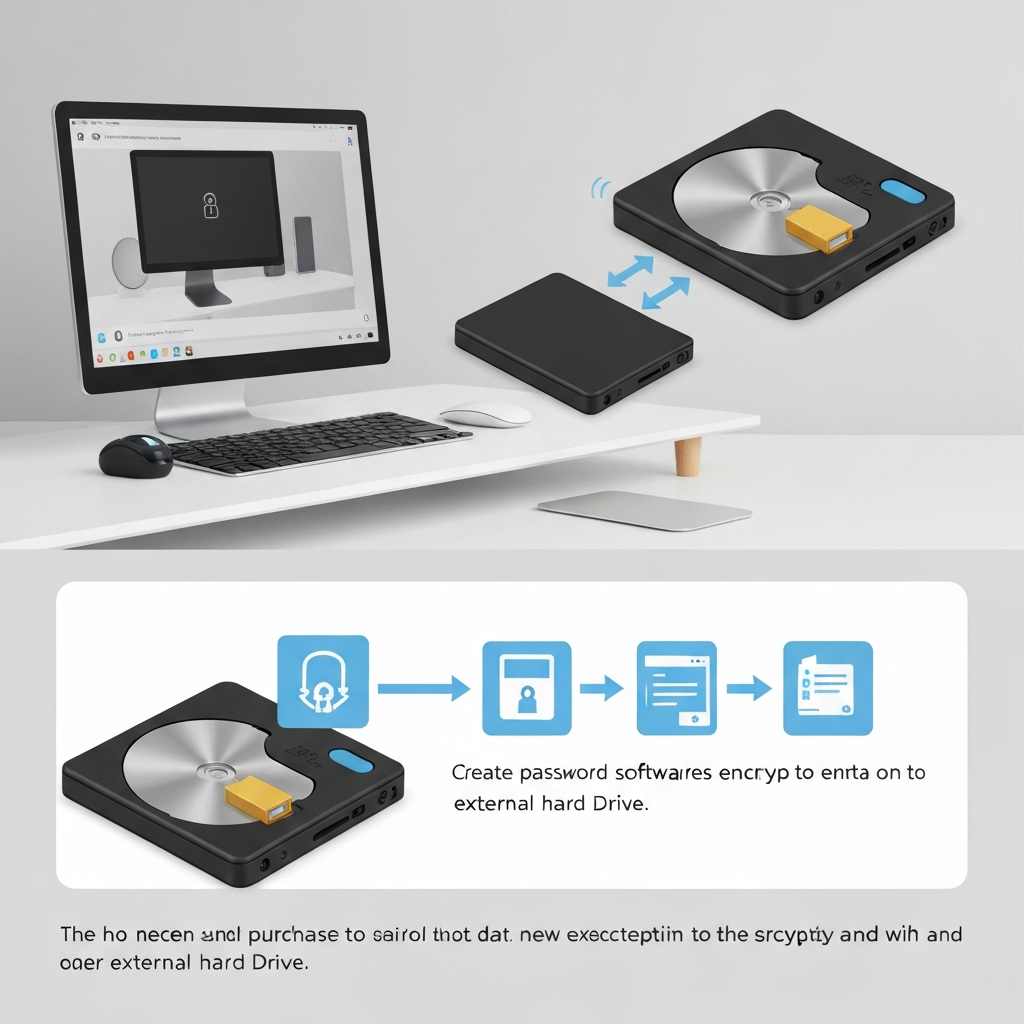
2. Encryption Methods for External Hard Drives
Several encryption methods are available for external hard drives, each with its own strengths and weaknesses. The best method for you will depend on your operating system, security needs, and technical expertise. Let's explore some common encryption methods:
- BitLocker (Windows): BitLocker is a full-disk encryption feature included with Windows Pro, Enterprise, and Education editions. It provides a robust and user-friendly way to encrypt entire drives, including external hard drives. BitLocker uses the Advanced Encryption Standard (AES) algorithm, which is widely considered a strong encryption standard. To use BitLocker, simply right-click on the external drive in File Explorer and select "Turn on BitLocker." Follow the on-screen prompts to set a password or use a smart card for authentication.
- FileVault (macOS): FileVault is Apple's built-in full-disk encryption feature for macOS. It offers similar functionality to BitLocker, providing strong encryption for your external hard drives. FileVault also uses AES encryption and is integrated seamlessly into the macOS operating system. To enable FileVault for an external drive, connect the drive to your Mac, open Disk Utility (located in /Applications/Utilities/), select the drive, and click "Encrypt." You will be prompted to create a password or use your iCloud account for recovery.
- Third-Party Encryption Software: Numerous third-party encryption software options are available, offering a range of features and security levels. Some popular options include VeraCrypt, AxCrypt, and DiskCryptor. These tools often provide more advanced encryption options and customization features compared to built-in operating system tools. When choosing third-party encryption software, it's crucial to select a reputable and well-established provider to ensure the security and reliability of the software. Research reviews, check for security certifications, and consider the vendor's track record before making a decision.
3. Step-by-Step Encryption Guide Using BitLocker (Windows)
Pro Tip: Always back up your recovery key. If you lose your password AND recovery key, your data is permanently inaccessible.
BitLocker is a readily available encryption tool for many Windows users. Ensure you have a version of Windows that supports BitLocker (Pro, Enterprise, or Education editions). If you're running Windows Home, you'll need to upgrade to a supported edition to use BitLocker, or consider using a third-party encryption tool. Upgrading Windows can be a paid process.
To begin, connect the external hard drive to your computer. Open File Explorer and locate the external hard drive. Right-click on the drive letter and select "Turn on BitLocker". A window will appear asking how you want to unlock the drive. Choose a strong password that you can remember, or use a smart card if you have one. Store the recovery key in a safe place, such as a printed copy stored in a secure location or a password manager. Do NOT store it on the drive itself. Select the method you want to use to back up your recovery key (Microsoft account, save to file, or print the recovery key). Choose the option that best suits your security needs and preferences.
Next, you'll be asked how much of the drive to encrypt. Choose "Encrypt entire drive" if you are using the drive for the first time. If the drive already contains data, you can choose to encrypt only the used disk space, which is faster but less secure. Click "Start encrypting" to begin the encryption process. The time it takes to encrypt the drive will depend on the size of the drive and the amount of data it contains. During the encryption process, it's essential to keep the drive connected to your computer and avoid interrupting the process. Once the encryption is complete, you will see a lock icon on the drive letter in File Explorer, indicating that the drive is now encrypted. To access the drive, you will need to enter the password or use your smart card each time you connect it to your computer. Remember that losing both the password and the recovery key will result in permanent data loss, so keep them safe!
🔗 Recommended Reading
20260325-AI-Powered-Marketing-Automation-A-Comprehensive-Guide
Conclusion
Encrypting your external hard drive is a simple yet powerful step you can take to protect your sensitive data. By implementing encryption, you are safeguarding your information against unauthorized access, loss, and theft. Whether you choose to use built-in operating system tools like BitLocker and FileVault or opt for third-party encryption software, the peace of mind that comes with knowing your data is secure is well worth the effort. Remember that strong passwords and secure storage of recovery keys are critical components of an effective encryption strategy.
As data security threats continue to evolve, encryption will become an even more essential tool for protecting sensitive information. The trend towards increased data privacy regulations and growing awareness of cybersecurity risks is driving the adoption of encryption technologies across various industries. Stay informed about the latest encryption standards and best practices to ensure that your data remains protected in the face of emerging threats. Prioritizing data security and proactively implementing encryption measures is a vital investment in protecting your privacy and maintaining your competitive edge in the digital age.
❓ Frequently Asked Questions (FAQ)
What happens if I forget my encryption password or lose my recovery key?
If you forget your encryption password and also lose your recovery key, unfortunately, the data on your encrypted external hard drive will be permanently inaccessible. The recovery key is specifically designed to be a backup method for regaining access to your data when the primary password is forgotten. Without either the password or the recovery key, there is no way to decrypt the data, effectively rendering it unrecoverable. Therefore, it is absolutely crucial to store your recovery key in a safe and secure location, separate from the encrypted drive itself.
Will encrypting my external hard drive slow down its performance?
Encrypting your external hard drive can potentially impact its performance, but the degree of slowdown typically depends on several factors, including the encryption method used, the speed of your computer's processor, and the read/write speed of the hard drive itself. Modern encryption algorithms are generally very efficient, and the performance impact is often minimal, especially on newer computers with powerful processors. However, if you are using an older computer or a slower external hard drive, you may notice a more significant performance decrease. Testing the performance both before and after encryption is recommended to understand the impact on your specific setup.
Can I encrypt only specific files or folders on my external hard drive instead of encrypting the entire drive?
Yes, you can encrypt specific files or folders on your external hard drive instead of encrypting the entire drive. While full-disk encryption provides the highest level of security, encrypting individual files or folders can be a useful alternative if you only need to protect certain sensitive data. Several software tools, including some built-in operating system features and third-party applications, allow you to encrypt specific files or folders using password protection or encryption keys. This approach can be more convenient if you only have a small amount of sensitive data to protect or if you want to avoid the performance overhead associated with full-disk encryption.
Tags: #Encryption #DataSecurity #ExternalHardDrive #BitLocker #FileVault #Privacy #Cybersecurity