📖 5 min read
Invoicing is a crucial aspect of any business, ensuring timely payments and maintaining healthy cash flow. However, manually creating invoices can be time-consuming, prone to errors, and inefficient, especially as your business grows. Imagine spending hours each month filling out repetitive invoice details when you could be focusing on strategic tasks. Fortunately, Excel provides a powerful platform for automating invoice generation, offering a customizable and cost-effective solution for businesses of all sizes. This guide will walk you through the process of creating dynamic invoice templates in Excel, enabling you to streamline your billing process and boost your overall productivity. By automating invoice generation, you’ll not only save valuable time but also reduce the risk of errors, ensuring accurate and professional-looking invoices every time.
1. Setting Up Your Basic Invoice Template in Excel
The foundation of automated invoice generation lies in creating a well-structured and visually appealing invoice template. Start by defining the essential elements of your invoice, including your company logo, contact information, customer details, invoice number, date, description of services or products, quantity, unit price, and total amount due. Utilize Excel's grid system to arrange these elements logically, ensuring a clear and easy-to-read layout. Consider using different font styles, sizes, and colors to highlight key information and create a professional aesthetic. Remember, your invoice represents your brand, so a clean and organized design is crucial for conveying professionalism and credibility.
Once you have the basic elements in place, focus on designing the structure of your data entry fields. Use distinct cells for each data point, such as customer name, address, item description, and price. This modular approach will make it easier to populate the invoice with data and automate calculations. For example, dedicate separate columns for quantity and unit price, allowing you to easily calculate the total amount for each item using Excel's formula capabilities. Experiment with different cell formatting options, such as currency formatting, date formatting, and number formatting, to ensure that all data is displayed correctly and consistently. These formatting options not only improve the visual appeal of your invoice but also reduce the risk of errors caused by incorrect data entry.
Beyond the fundamental information and formatting, consider adding a section for terms and conditions or payment instructions. This section can be placed at the bottom of the invoice and should clearly outline your payment policies, late payment fees, and accepted payment methods. Clearly communicated payment terms can help prevent misunderstandings and ensure timely payments. You can also include a personalized message or a thank-you note to your customers to foster positive relationships. Remember, a well-designed invoice is not just a bill; it's an opportunity to reinforce your brand image and build customer loyalty.
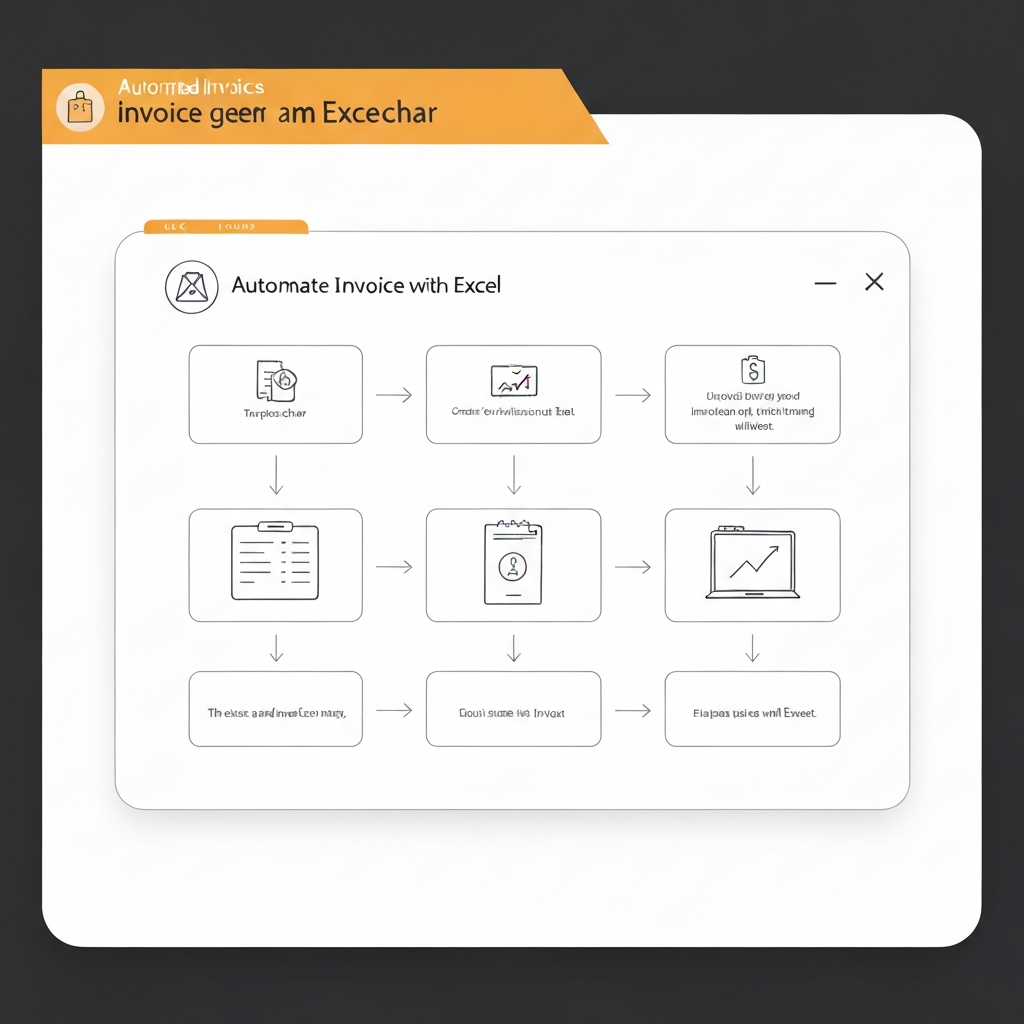
2. Automating Calculations and Data Population
The real power of automated invoice generation lies in leveraging Excel's formulas and functions to streamline calculations and data population. This eliminates manual calculations, reduces the risk of errors, and saves you significant time. By automating these processes, you can focus on other critical aspects of your business, such as sales, marketing, and customer service.
- Using Formulas for Calculations: Excel's formulas are essential for automating calculations within your invoice. For example, you can use the `SUM` function to calculate the total amount due, the `PRODUCT` function to calculate the total price for each item (quantity multiplied by unit price), and the `IF` function to apply discounts or taxes based on certain conditions. For instance, you could create a formula that automatically applies a 10% discount if the customer's total purchase exceeds a certain amount. Ensure that your formulas are accurate and well-tested to avoid errors in your invoices. Regularly review and update your formulas as your business evolves and your pricing structures change.
- Employing Data Validation for Accuracy: Data validation is a powerful tool for ensuring data accuracy and consistency within your invoice template. You can use data validation to restrict the type of data that can be entered into specific cells. For example, you can restrict the invoice number to a numeric value or create a drop-down list of available products or services. This prevents users from entering incorrect or invalid data, reducing the risk of errors and ensuring that your invoices are always accurate. Consider implementing data validation for critical fields such as customer ID, product codes, and payment terms.
- Leveraging VLOOKUP for Dynamic Data Retrieval: The `VLOOKUP` function is invaluable for automatically retrieving data from external sources, such as a product catalog or customer database. Imagine you have a separate spreadsheet containing a list of all your products and their corresponding prices. Using `VLOOKUP`, you can automatically populate the unit price field on your invoice by simply entering the product code. This eliminates the need to manually enter the price for each item, saving you time and reducing the risk of errors. Ensure that your lookup table is accurate and up-to-date to ensure that the correct data is retrieved.
3. Advanced Automation Techniques for Enhanced Efficiency
Pro Tip: Use Excel's macro functionality (VBA) to create custom buttons or commands that automate repetitive tasks, such as saving invoices as PDFs or emailing them directly to customers.
Beyond basic formulas and data validation, Excel offers advanced automation techniques that can further enhance your invoice generation process. These techniques involve using macros (VBA code) to automate repetitive tasks, create custom user interfaces, and integrate with other applications. While VBA programming requires some technical knowledge, the benefits in terms of efficiency and productivity can be significant. Consider exploring these advanced techniques if you have complex invoicing needs or want to streamline your workflow even further.
One powerful application of VBA is creating custom buttons that trigger specific actions, such as generating a new invoice, saving the current invoice as a PDF, or emailing the invoice directly to the customer. By automating these tasks, you can eliminate manual steps and reduce the risk of errors. For example, you could create a button that automatically populates the invoice with the customer's details based on their customer ID. This would save you the time and effort of manually entering the customer's information each time you create an invoice. When designing your VBA code, ensure that it is well-documented and easy to understand. This will make it easier to maintain and update your code in the future.
Another advanced technique is integrating your Excel invoice template with other applications, such as your accounting software or CRM system. This integration can streamline your financial processes and provide a more comprehensive view of your business. For example, you could automatically export invoice data to your accounting software to update your sales records and track your revenue. You could also integrate your invoice template with your CRM system to automatically update customer information and track invoice history. These integrations can significantly improve your efficiency and provide valuable insights into your business performance. Remember to prioritize data security when integrating your Excel invoice template with other applications.
Conclusion
Automating invoice generation with Excel offers numerous benefits for businesses of all sizes. By creating dynamic invoice templates, automating calculations, and streamlining data population, you can save valuable time, reduce the risk of errors, and improve your overall efficiency. Implementing the techniques discussed in this guide will empower you to create professional-looking invoices quickly and easily, allowing you to focus on growing your business and serving your customers.
As technology continues to evolve, we can expect to see even more sophisticated tools and techniques for automating invoice generation. Cloud-based invoicing solutions are becoming increasingly popular, offering features such as online payment processing, automated reminders, and integration with other business applications. While Excel remains a powerful and versatile tool for invoice automation, it's important to stay informed about emerging technologies and trends to ensure that you are using the best possible solution for your specific needs. Embrace automation to streamline your business processes and gain a competitive edge in today's dynamic market.
❓ Frequently Asked Questions (FAQ)
How do I prevent accidental changes to my invoice template?
To prevent accidental changes, you can protect specific cells or the entire worksheet in Excel. Select the cells you want to protect, right-click, and choose "Format Cells." Go to the "Protection" tab and check the "Locked" box. Then, go to the "Review" tab and click "Protect Sheet." You can set a password to further restrict access to making changes. This ensures that important formulas and design elements remain intact, preserving the integrity of your automated invoice.
Can I customize the invoice template to match my brand?
Absolutely! Customizing your invoice template is essential for reinforcing your brand identity. You can insert your company logo, use your brand colors, and choose fonts that align with your brand guidelines. Go to the "Insert" tab and click "Pictures" to add your logo. Use the "Format Cells" option to change the background color, font color, and font style. Ensure that your customization enhances the visual appeal and readability of the invoice while maintaining a professional look. Consistent branding across all your invoices will strengthen your brand recognition and create a positive impression on your customers.
How can I automatically generate invoice numbers in Excel?
Automatically generating invoice numbers can be achieved by using Excel's `ROW` function combined with some text formatting. In the cell where you want the invoice number to appear, enter a formula like `="INV-"&TEXT(ROW(A1),"0000")`. This formula will generate invoice numbers starting with "INV-0001" and increment automatically as you copy the formula down to create new invoices. You can customize the "INV-" prefix and the number of leading zeros ("0000") to match your desired invoice numbering format. Using this method ensures sequential and unique invoice numbers, simplifying tracking and preventing duplicates.
Tags: #Excel #InvoiceAutomation #WorkflowAutomation #BusinessTemplates #Productivity #Efficiency #BusinessOperations
🔗 Recommended Reading